
Dashboards & APM
Dashboards let you collect your most important Honeybadger Insights charts and data in one place so you can see what’s happening with your app at a glance. Instead of running queries repeatedly or jumping between pages, dashboards give you a single view of your application’s health and performance, helping you spot trends and fix issues.
Getting started
Section titled “Getting started”To create a dashboard, navigate to the Dashboards section in your Honeybadger project, click the dashboard selector in the top left, then click the + button next to the dashboard you want to add.
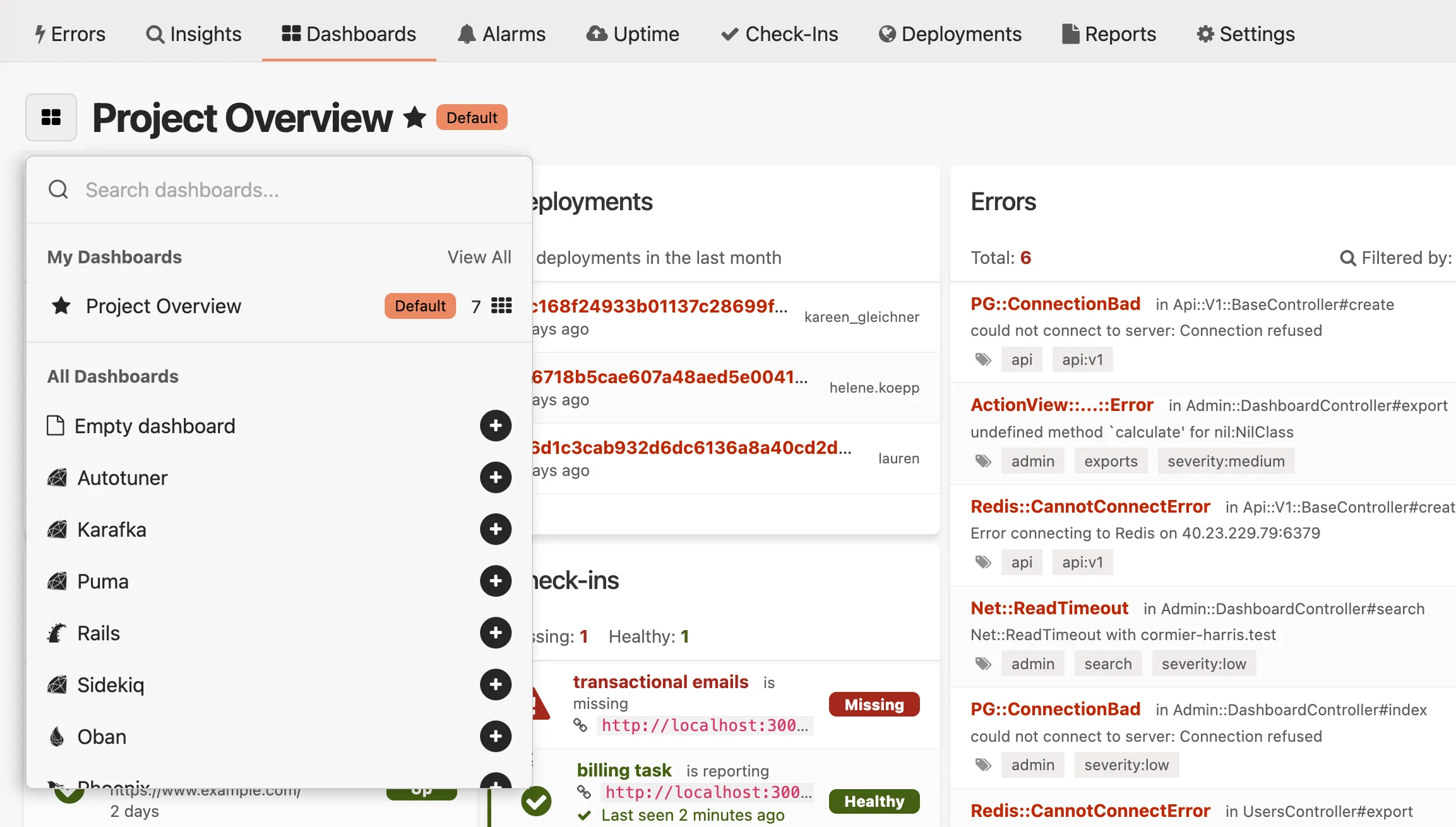
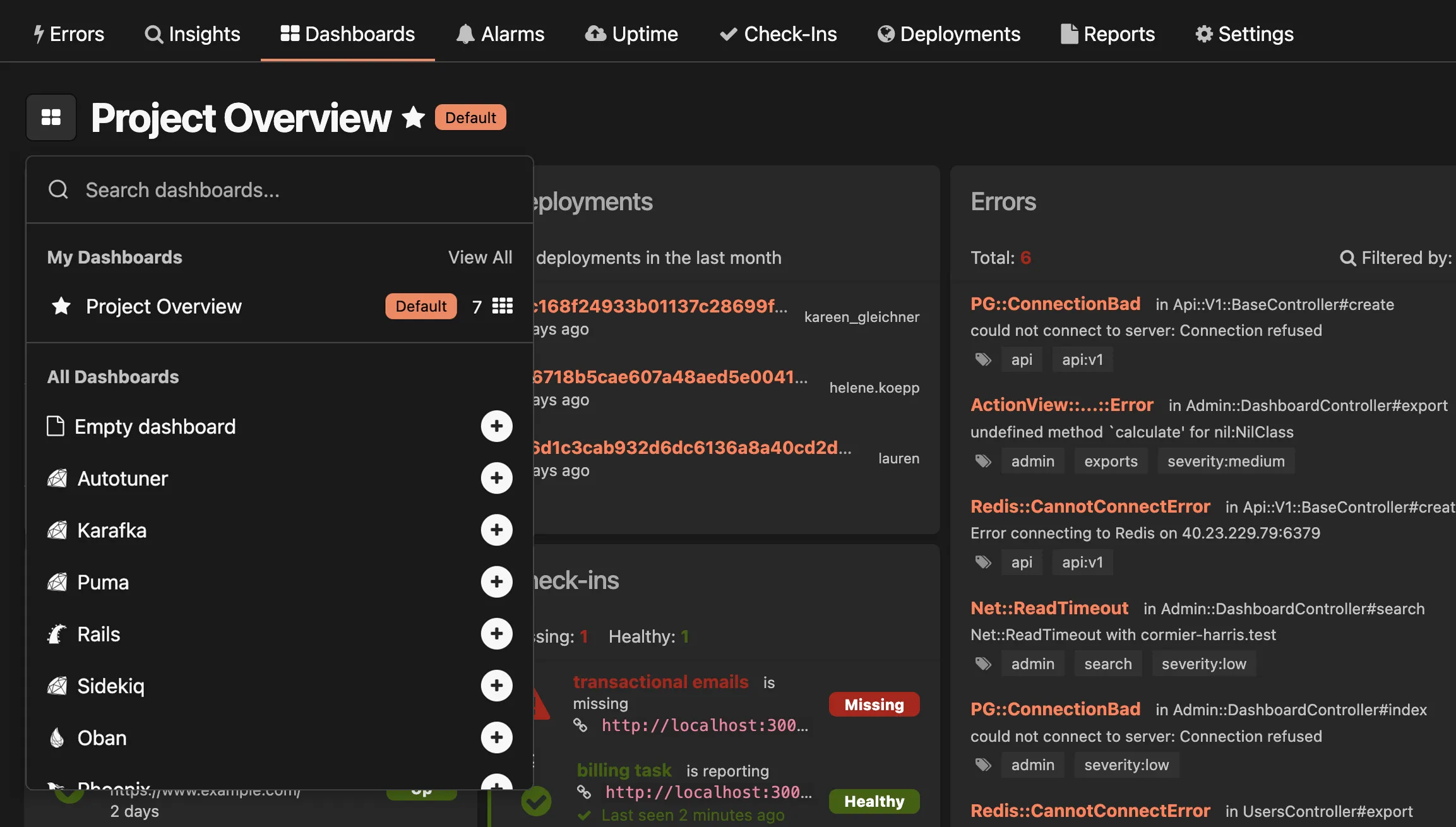
Project Overview dashboard
Section titled “Project Overview dashboard”The Project Overview dashboard provides a comprehensive view of your application’s health and performance. It’s automatically added to every new Honeybadger project, giving you immediate visibility into alarms, deployments, errors, uptime checks, and check-ins.
Automatic dashboards
Section titled “Automatic dashboards”To help you get started quickly, Honeybadger provides pre-configured automatic dashboards with relevant widgets for common frameworks and platforms. These dashboards are automatically populated when you enable instrumentation for supported platforms.
Getting started with automatic dashboards
Section titled “Getting started with automatic dashboards”To enable automatic dashboards for your applications, follow these steps:
- Enable Honeybadger Insights instrumentation in your client library (e.g., Ruby, Elixir, PHP, etc.)
- Deploy your application with the updated configuration
- Navigate to the Dashboards section in your Honeybadger project, click Create dashboard, select the dashboard you want, then click Add dashboard.
Your dashboard will begin to populate with data as soon as your application starts sending events to Honeybadger.
Customizing dashboards
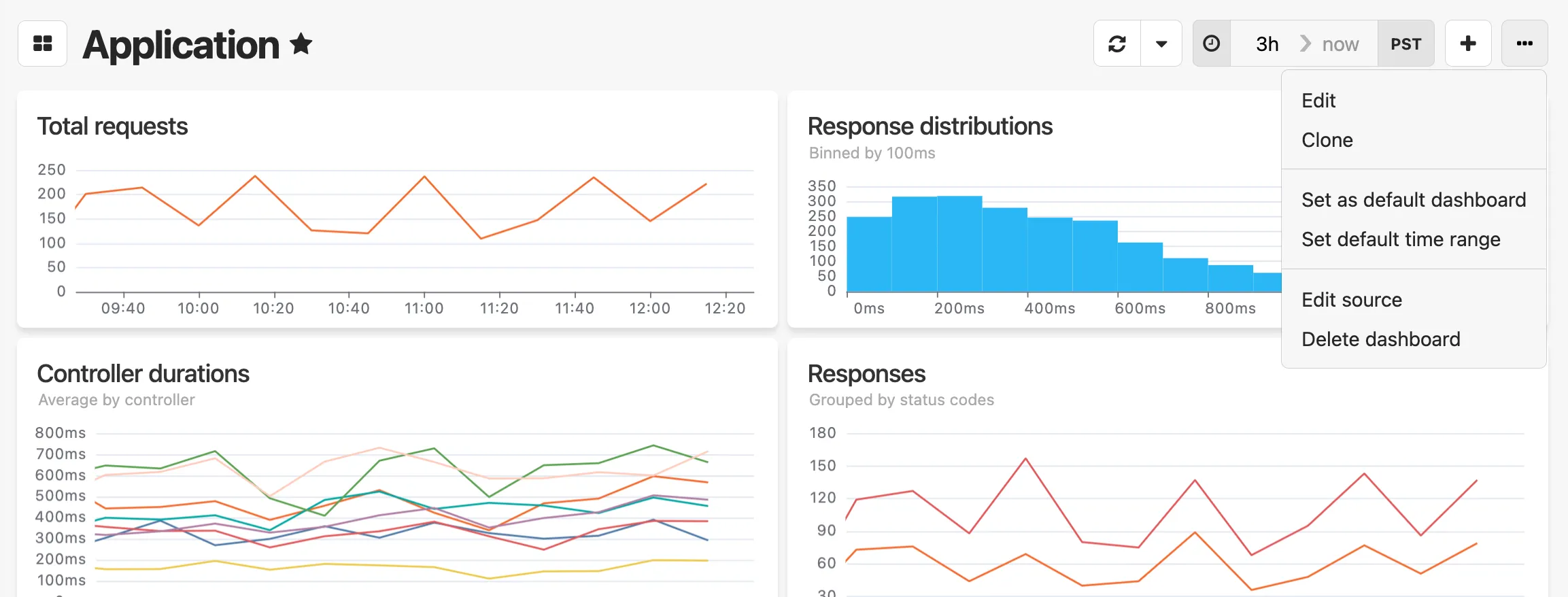
Section titled “Customizing dashboards”You can customize any dashboard by clicking the … menu in the top right corner of the dashboard. From there, you can:
- Edit - Modify the dashboard layout and widgets
- Clone - Create a copy of the dashboard
- Set as default dashboard - Make this dashboard your default view
- Set default time range - Configure the default time period
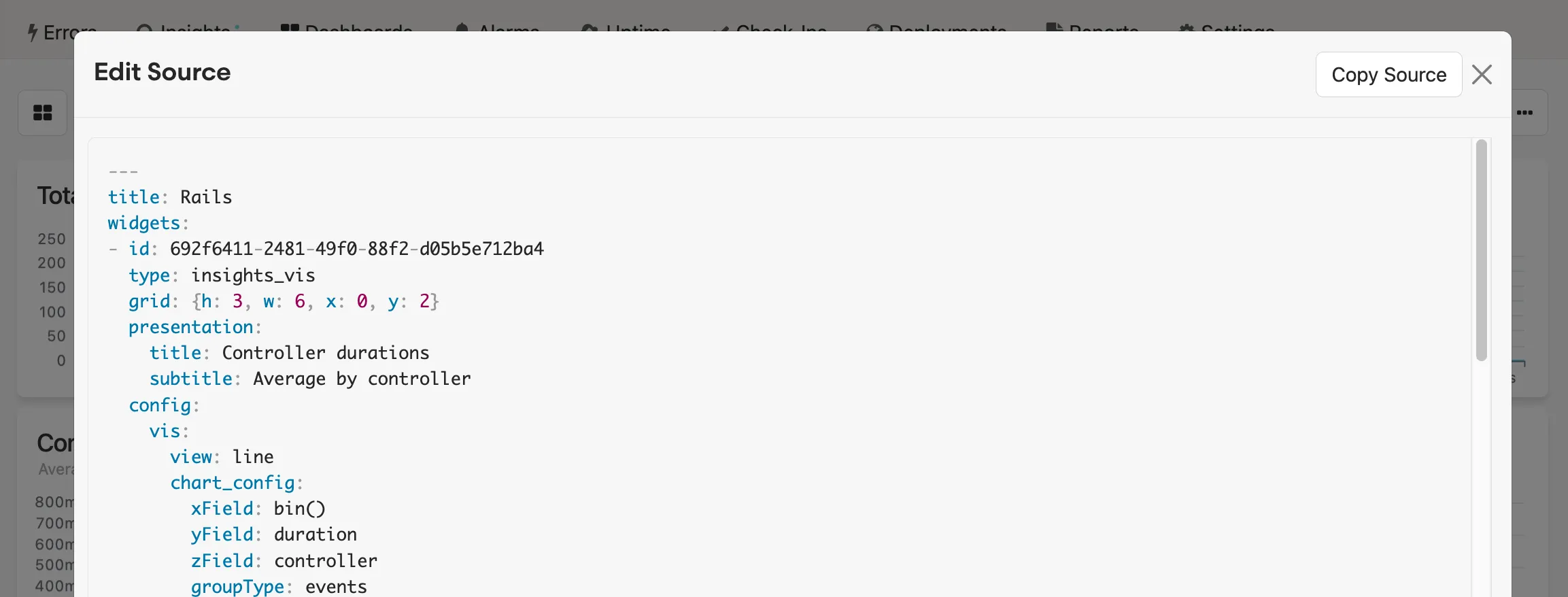
- Edit source - View and edit the dashboard’s YAML configuration
- Delete dashboard - Remove the dashboard
Widget library
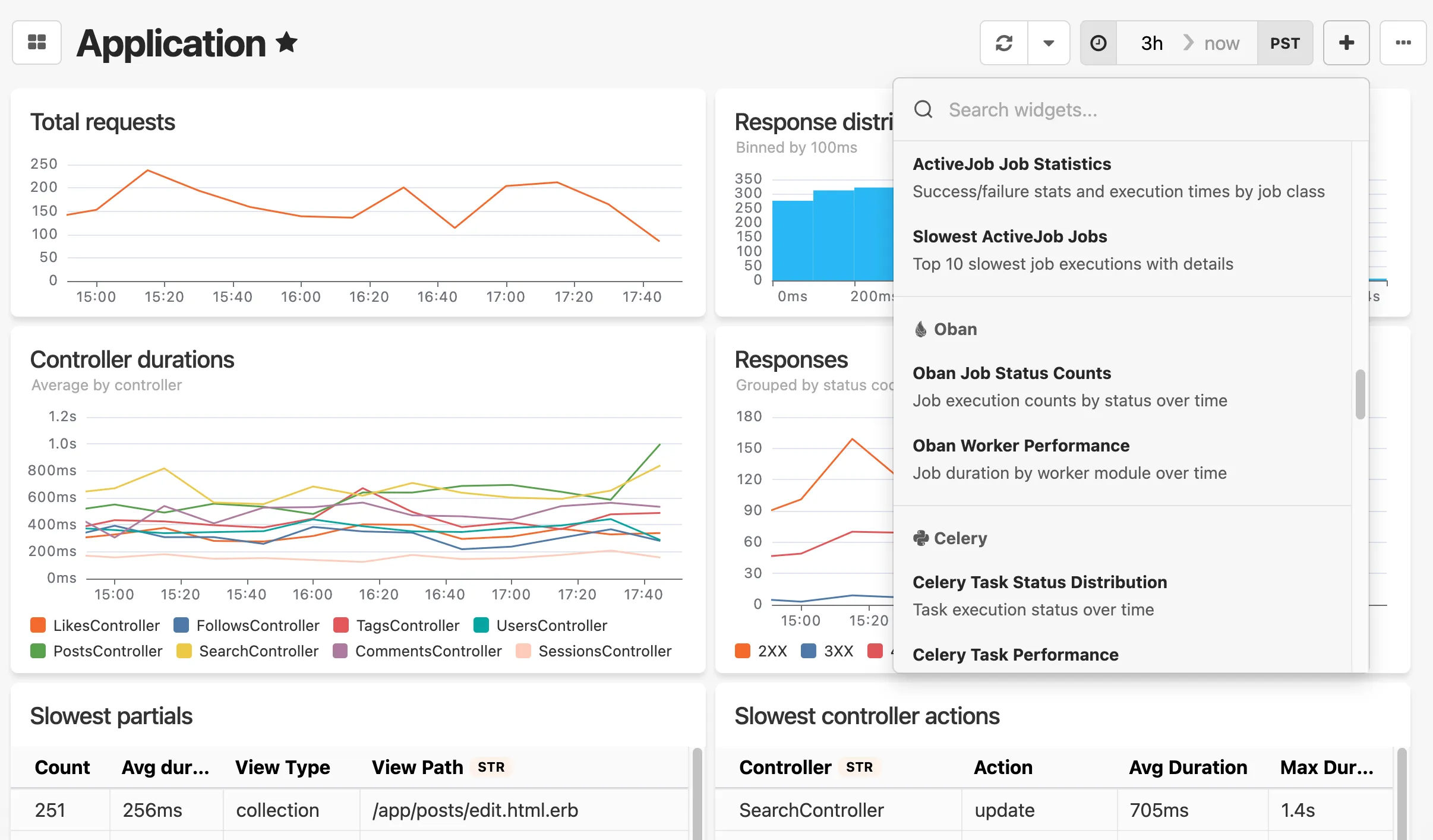
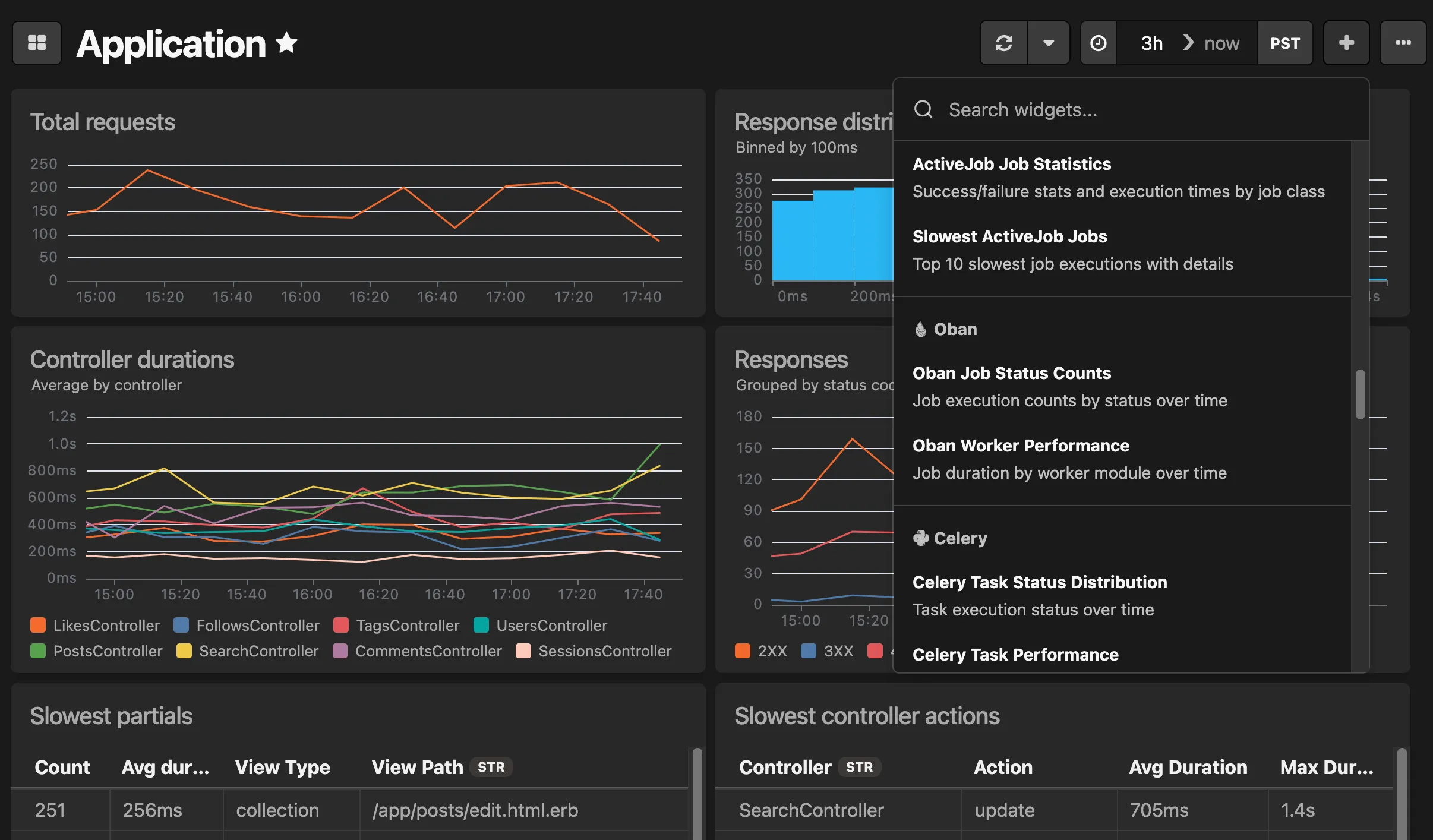
Section titled “Widget library”When adding new widgets to a dashboard, you can choose from a library of pre-configured widget templates. The widget library includes templates for common data sources such as:
- Error rates and deployments
- Database performance metrics
- Background job processing times
- Request counts and response distributions
- Cache hit rates
To add a widget from the library, click the + Add widget menu in the top right corner of the dashboard and select a template. You can customize any widget after adding it to your dashboard.
Editing widgets
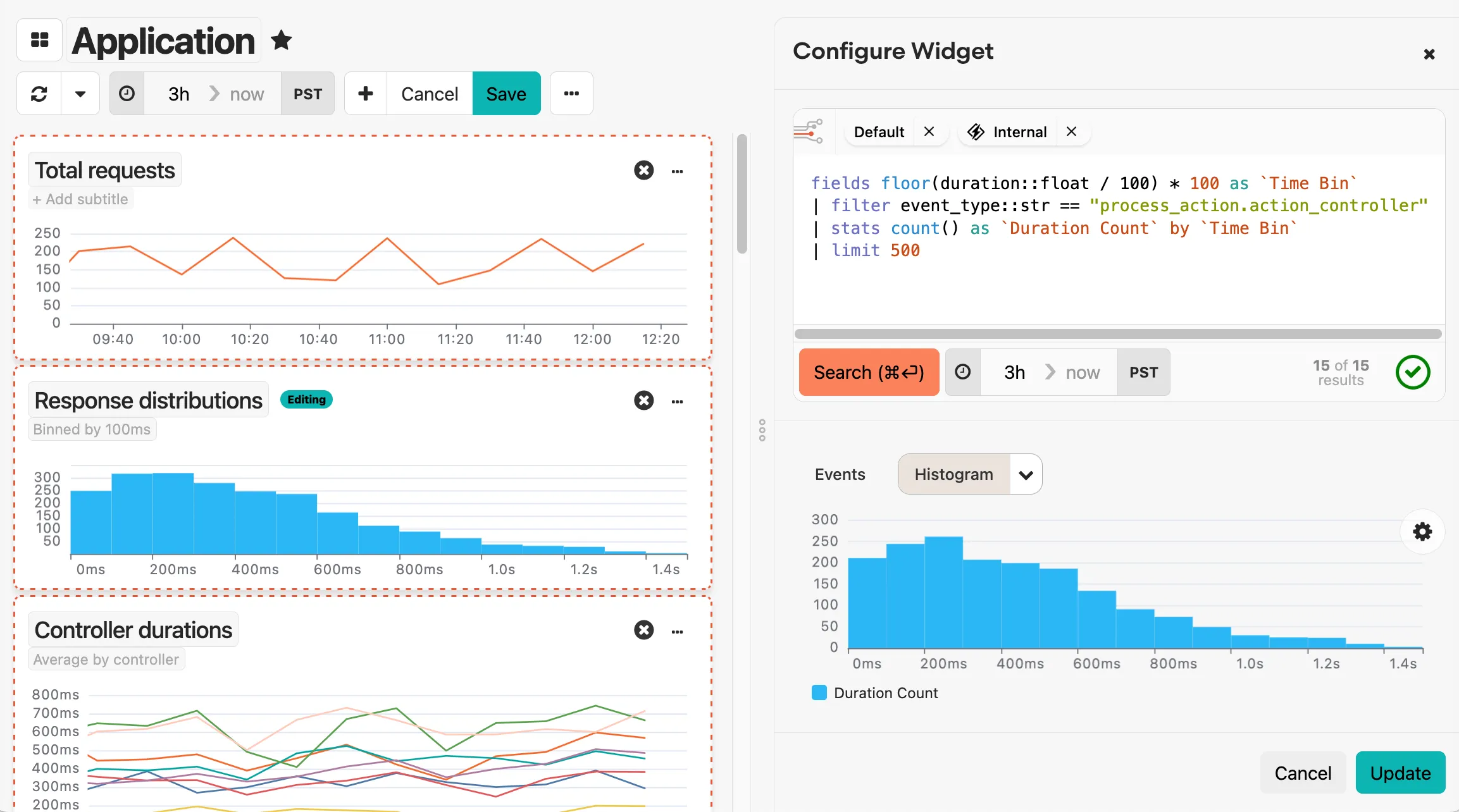
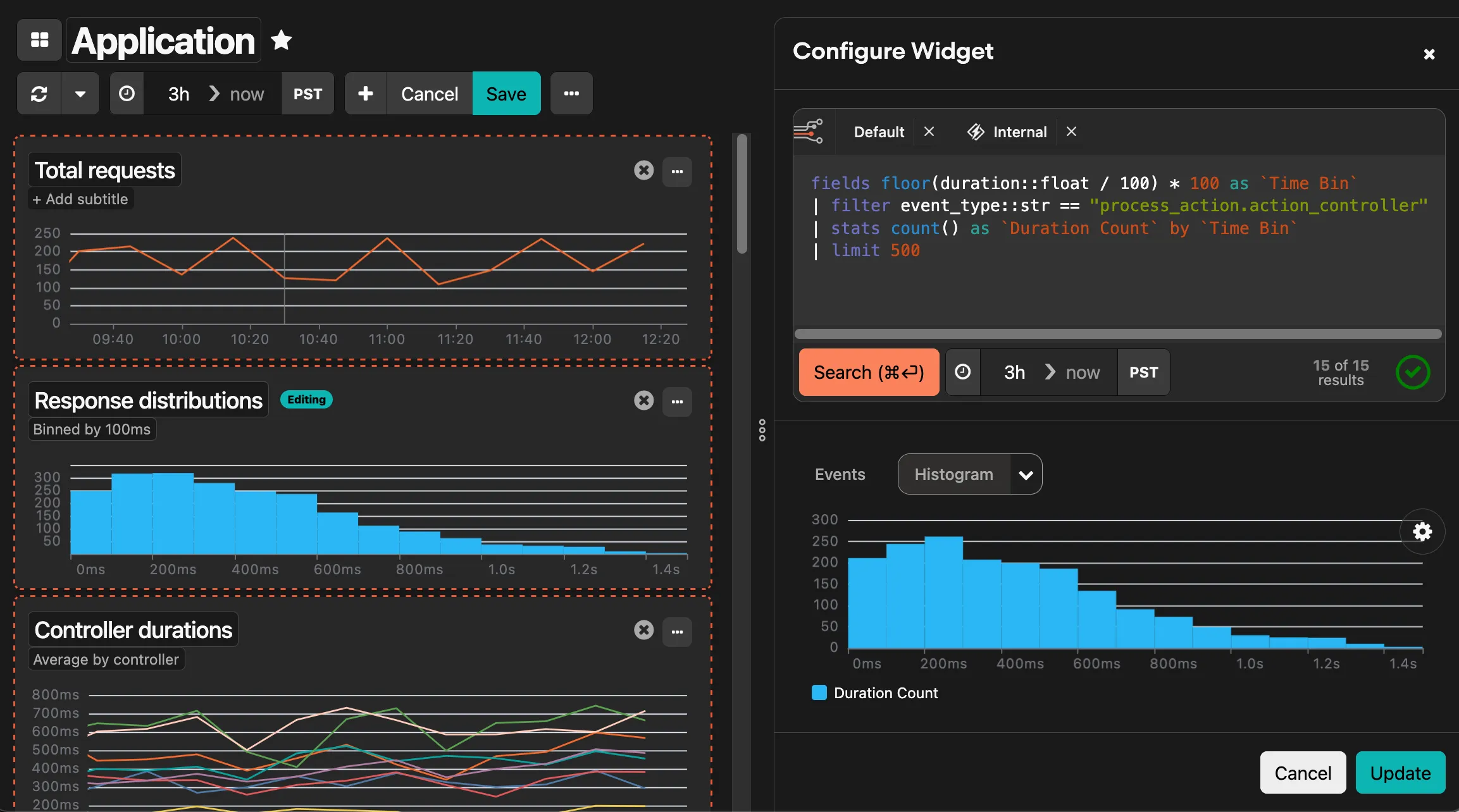
Section titled “Editing widgets”In edit mode, you can configure any widget by clicking the … menu on the widget and selecting Edit widget. This opens the widget editor where you can modify the query, change the visualization type, and preview results before saving.
Editing dashboard source
Section titled “Editing dashboard source”For advanced customization, select Edit source to view and modify the entire dashboard configuration as YAML. This is useful for:
- Making bulk changes without navigating the UI
- Copying dashboards between projects
- Sharing configurations with team members
The editor validates your configuration against a predefined schema and displays helpful error messages if something’s wrong. Stream IDs are automatically converted to human-readable names, so you don’t need to manually update identifiers when moving configurations between projects.
Available dashboards
Section titled “Available dashboards”Next steps
Section titled “Next steps”- Learn more about Honeybadger Insights
- Try BadgerQL to explore your data and create custom dashboard widgets
- Set up Insights Alarms to turn your queries into actionable alerts
- Send additional data from your infrastructure to Honeybadger