
Archive destinations
Business EnterpriseArchive destinations replicate the events flowing into your Honeybadger Insights streams to an S3-compatible bucket that you own and control. Once a destination is configured and a stream is attached, Honeybadger writes a continuous archive of that stream’s events into your bucket.
This is useful for long-term retention beyond your Insights data window or for feeding events into your own data warehouse or lake.
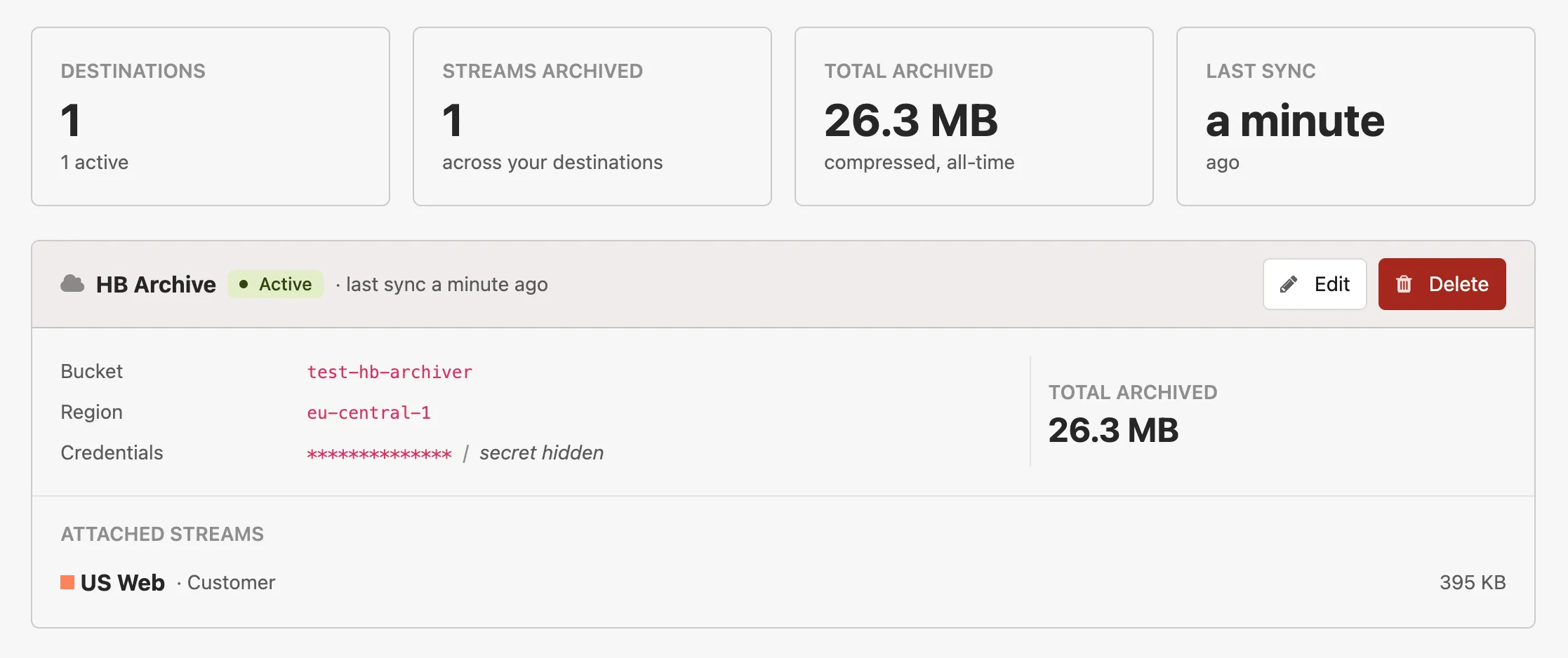
What gets archived
Section titled “What gets archived”Only the events that flow through your Insights streams are replicated:
- The custom events your application sends to Insights via the Events API or a Honeybadger client library.
- The internal events Honeybadger generates for your project — error notifications, deployments, uptime checks, check-in reports, and so on.
Detailed error data such as backtraces, breadcrumbs, and environment variables is not included. Archive destinations replicate distilled stream events, not full error payloads.
You choose which streams replicate to which destination, so you can archive just your application events, just the internal Honeybadger events, or both.
Supported providers
Section titled “Supported providers”You can point a destination at any of these S3-compatible providers:
- Amazon S3
- Cloudflare R2
- Google Cloud Storage (S3-compatible interop endpoint)
- Wasabi
- Backblaze B2
- DigitalOcean Spaces
The endpoint must use HTTPS. AWS S3 buckets are detected from the bucket name and don’t require an endpoint URL — for the others, set the provider’s S3-compatible endpoint URL on the destination.
Setting up a destination
Section titled “Setting up a destination”Archive destinations are managed at the account level under Account Settings → Archive Destinations.
1. Create the bucket
Section titled “1. Create the bucket”Create a bucket on your provider of choice. A fresh bucket dedicated to Honeybadger archives is the simplest setup, but you can also add archives to an existing bucket by configuring a prefix on the destination.
2. Create credentials
Section titled “2. Create credentials”Create an access key and secret with permission to write to that bucket. The archiver only needs to upload objects — at minimum:
s3:PutObjecton the bucket (scoped to your prefix is fine)
No read, list, or delete permissions are required. We recommend creating a dedicated IAM user (or equivalent on your provider) scoped to just the archive bucket so the credentials you give Honeybadger can’t reach anything else.
For example, on AWS S3 a minimal policy looks like:
{ "Version": "2012-10-17", "Statement": [ { "Effect": "Allow", "Action": "s3:PutObject", "Resource": "arn:aws:s3:::your-bucket-name/*" } ]}If you scope to a prefix, change the resource to
arn:aws:s3:::your-bucket-name/your-prefix/*.
Objects are uploaded with AES-256 server-side encryption (SSE-S3) by default. If your bucket policy enforces a specific encryption type, make sure SSE-S3 is allowed.
3. Add the destination in Honeybadger
Section titled “3. Add the destination in Honeybadger”In Account Settings → Archive Destinations, click New destination and fill in:
- Name — a short label that’s unique within your account.
- S3 bucket — the bucket name.
- Prefix (optional) — a key prefix that all archived objects will be written under. Useful if the bucket is shared with other data.
- Region (optional, required for AWS S3) — e.g.
us-west-2. - Endpoint URL (optional) — leave blank for AWS S3. Set this to the provider’s S3-compatible endpoint for R2, GCS, Wasabi, Backblaze, or DigitalOcean Spaces.
- Access key ID and Secret access key — the credentials from step 2.
Credentials are encrypted at rest. When editing an existing destination, leave the credential fields blank to keep the stored values; fill them in to rotate.
4. Attach streams
Section titled “4. Attach streams”A destination with no streams attached is paused — nothing replicates until you select at least one stream. On the destination form, pick the streams you want to replicate. Each stream can only be attached to one destination at a time.
Streams start replicating on the next archive cycle. There’s no backfill — only events ingested after a stream is attached will land in your bucket.
File structure
Section titled “File structure”Objects are gzip-compressed JSON Lines (one event per line, served with
Content-Type: application/jsonl). The key layout is:
[prefix/]insights/{stream_id}/{YYYY}/{MM}/{DD}/{HH}/{unix_timestamp}_{random_hex}.jsonl.gzFor example, with prefix honeybadger:
honeybadger/insights/abc123/2026/04/30/14/1714485612_a3f80c1d4e2b9876.jsonl.gzThe path components:
prefix/— the optional prefix you configured on the destination.insights/{stream_id}/— fixed prefix plus the stream ID.{YYYY}/{MM}/{DD}/{HH}/— UTC ingestion hour the events fell into. This is based on when the events were received by Honeybadger, not when the file was written, so a delayed write still lands in the hour it logically belongs to.{unix_timestamp}_{random_hex}.jsonl.gz— a unique object name within the hour.
Each object decompresses to JSON Lines: one JSON object per line, one event per line.
Object frequency
Section titled “Object frequency”Honeybadger periodically writes new objects into your bucket for each active stream. The exact cadence isn’t guaranteed and may vary over time, so the important model to keep in mind is:
Concatenating every object under a stream’s prefix gives you that stream’s full event history.
No single object contains all of a stream’s events — each object is a
fragment. To reconstruct events for a time range, list every object under
insights/{stream_id}/{YYYY}/{MM}/{DD}/{HH}/ for the hours you care about
and concatenate their decompressed contents. Tools like AWS Athena, DuckDB,
ClickHouse, and most data warehouses can read directories of gzipped JSON Lines
files directly without needing to merge them yourself.
Status, pauses, and errors
Section titled “Status, pauses, and errors”Each destination is in one of three states:
- Active — at least one stream is attached and writes are succeeding.
- Paused — the destination is configured but no streams are attached. Attach a stream to start.
- Errored — Honeybadger has stopped writing to the bucket. Events for attached streams are dropped until you fix the destination and reactivate it.
Honeybadger transparently handles short-term failures on the bucket’s side — we retry and buffer events through network blips, timeouts, and brief outages, so most disruptions recover without you noticing. If a destination keeps failing or hits a problem we can’t recover from on our own (invalid credentials, a missing bucket, a permission change), we move it to the errored state and email the account owner with the details. The destination card shows the last error message and when it occurred.
To recover, fix the underlying issue and either save the destination with corrected credentials — a successful save reactivates it automatically — or click Reactivate if only a transient issue needed clearing.
If the underlying problem isn’t actually fixed, the next archive write will flip the destination back to errored.
Deleting a destination
Section titled “Deleting a destination”Deleting a destination immediately stops new writes for any attached streams. Objects that have already been written to your bucket are not deleted — they’re yours, and Honeybadger never reads or removes them after upload.
If you want to fully clean up, delete the bucket (or the objects under your prefix) yourself once you no longer need the archived data.