
Zulip
Users with administrative privileges can find this integration below the list of personal alert integrations on the Alerts & Integrations tab of the Project Settings page.
1. In Zulip, create a new incoming webhook bot.
Section titled “1. In Zulip, create a new incoming webhook bot.”You’ll need to create a new Incoming Webhook Bot in Zulip. This is done by going to the Settings page of your Zulip organization and selecting Bots from the left-hand menu.
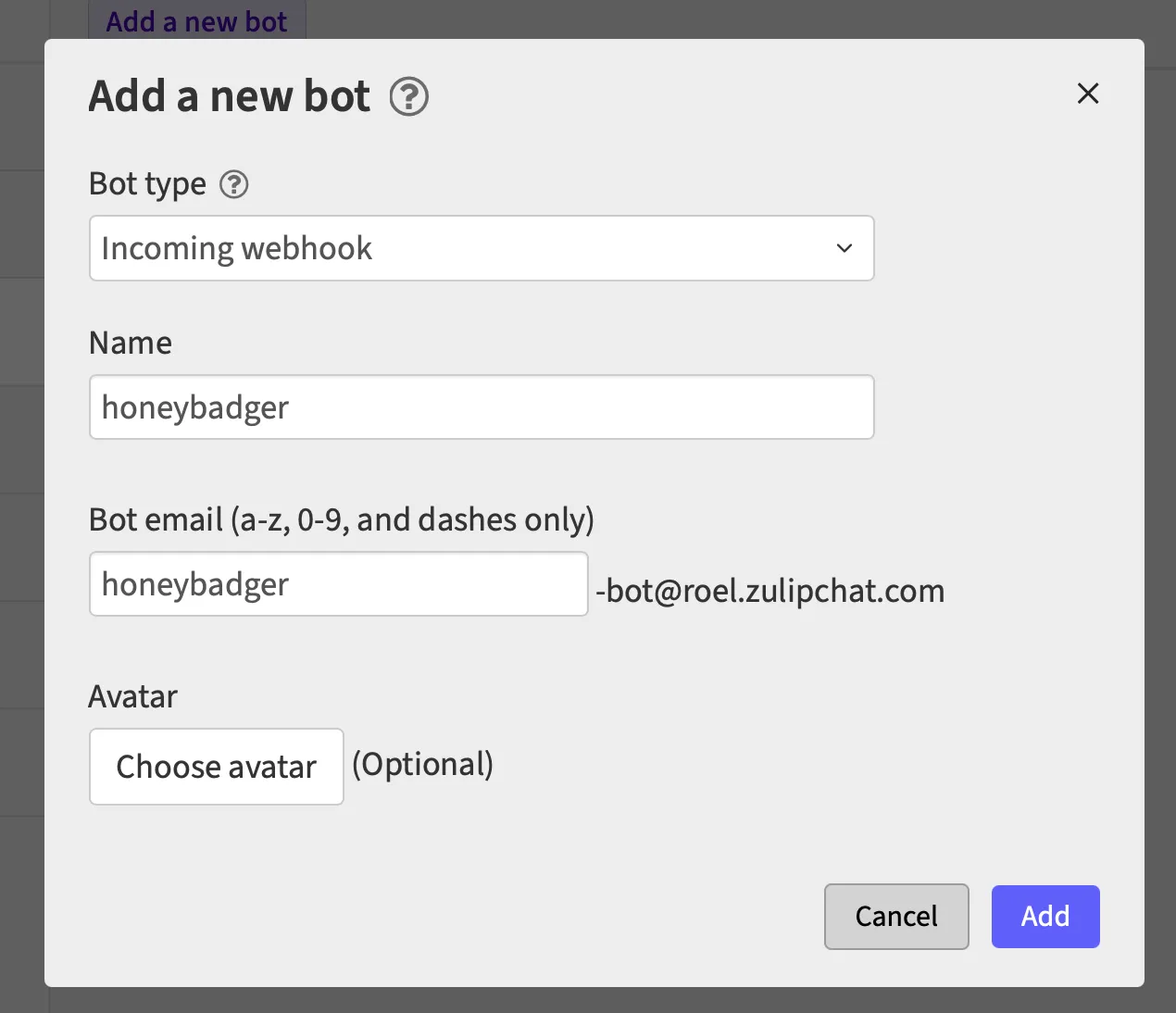
2. In Honeybadger, locate the Zulip integration.
Section titled “2. In Honeybadger, locate the Zulip integration.”In the project settings, click on the Integrations tab where you’ll find the Zulip integration.

3. Fill in the required fields and save.
Section titled “3. Fill in the required fields and save.”Fill in the bot email and API key which you generated in step 1, along with the channel and topic where notifications should be posted. Then tell Honeybadger where your Zulip organization lives:
- Zulip Cloud: enter your organization’s subdomain in the Zulip Cloud
subdomain field (for example,
exampleforexample.zulipchat.com), and leave Server URL blank. - Self-hosted Zulip: enter your server’s address in the Server URL field
(for example,
https://chat.example.com), and leave Zulip Cloud subdomain blank. When a server URL is set, it’s used instead of the Zulip Cloud subdomain.
The server URL must use HTTPS, must be just the server’s address (no path, query string, or credentials), and must resolve to a publicly reachable address.
Configure which notifications you wish to receive and then save.
You can also click on the “Test this integration” button to send a test notification to your Zulip stream. This is a great way to ensure that everything is set up correctly before you start receiving real notifications.
